

Every computer we manage comes pre-configured with Microsoft OneDrive — so your files are always available, always backed up, and easy to access, just like a normal folder on your desktop.
Here’s how it works and how to use it day-to-day:
Where to Find Your Files
On Windows:
-
Open File Explorer
-
Look for the OneDrive – [Your Company Name] folder in the left-hand sidebar
-
Inside, you’ll see:
-
Your personal files (Documents, Desktop, Pictures, etc.)
-
Any shared folders from your team or company (via SharePoint shortcuts)
-
On macOS:
-
Open Finder
-
Click OneDrive – [Your Company Name] in the sidebar
-
Just like on Windows, you’ll see:
-
Your personal files
-
Shared company folders
-
✅ You can open, edit, move, or save files here — just like any other folder.
☁️ What Do the Little Icons Mean?
Files and folders have small status icons to show their sync state:
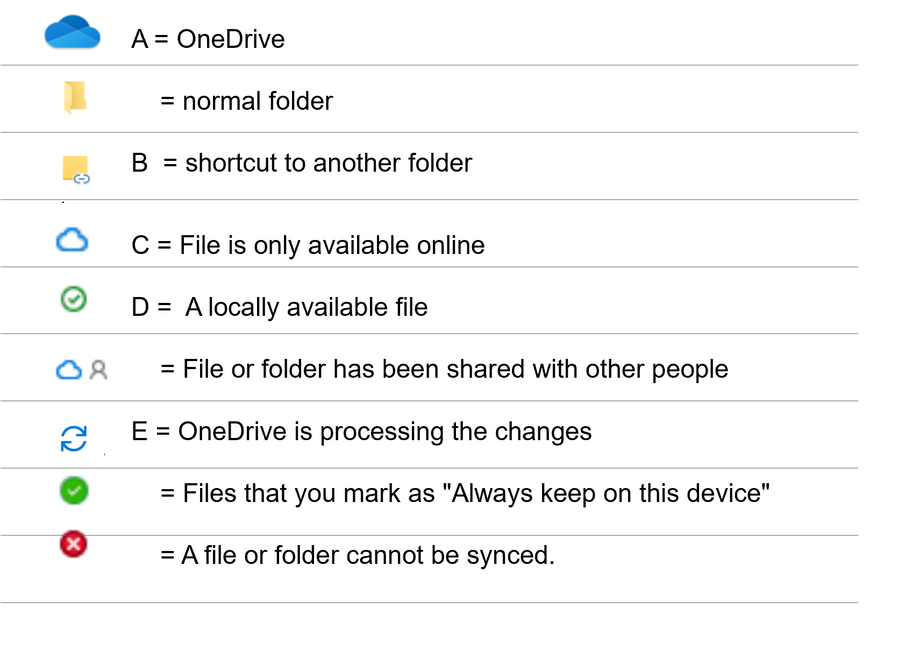
OneDrive uses Files On-Demand, so files don’t take up space unless you open them or choose to keep them offline.
How It All Connects
-
Your personal files (Desktop, Documents, etc.) are backed up automatically through Known Folder Move
-
Company folders are added for you using “Add Shortcut to OneDrive” — these show up in the same place
-
You don’t need to log in — everything is set up silently by IT
Think of This Like Your New "H Drive"
You don’t have to dig around in SharePoint or Teams every time.
Just open File Explorer or Finder and go to OneDrive — your files and shared folders are all right there.
Something Missing?
If a shared folder isn’t showing up or something seems off:
-
Make sure you're connected to the internet
-
Check your OneDrive status icon in the system tray (Windows) or menu bar (Mac)
-
Reach out to IT — we’ll make sure everything’s mapped correctly
Still unsure? Open a ticket and we’ll walk you through it!